

Scanned financial documents to editable Word tables
Budgets, statements, invoices and tax forms, with amounts as text and schedules as real tables.
- 1 page free, no account
- PDF, JPG, PNG · 50 MB
- Deleted after 24 h (how we handle your files)
Figures you can select, check and change
Some OCR tools keep amounts as pictures or scatter them across frames. OrigaDoc writes them as text and keeps a column of figures in a Word table.
- 0frames or text boxes in OrigaDoc’s Word files
- 631frames and text boxes in a leading desktop OCR program’s Word files
- 11 scanscompared side by side
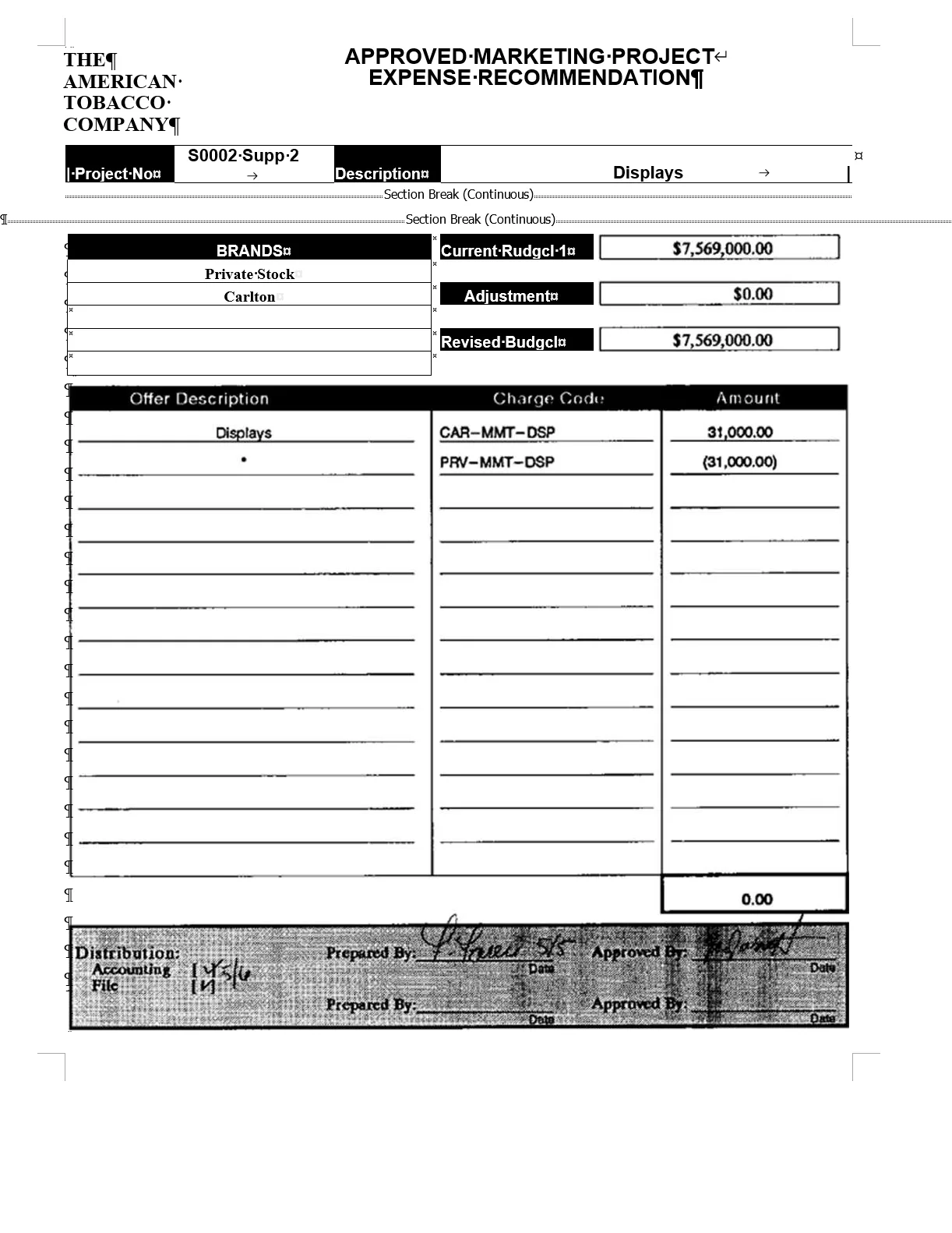
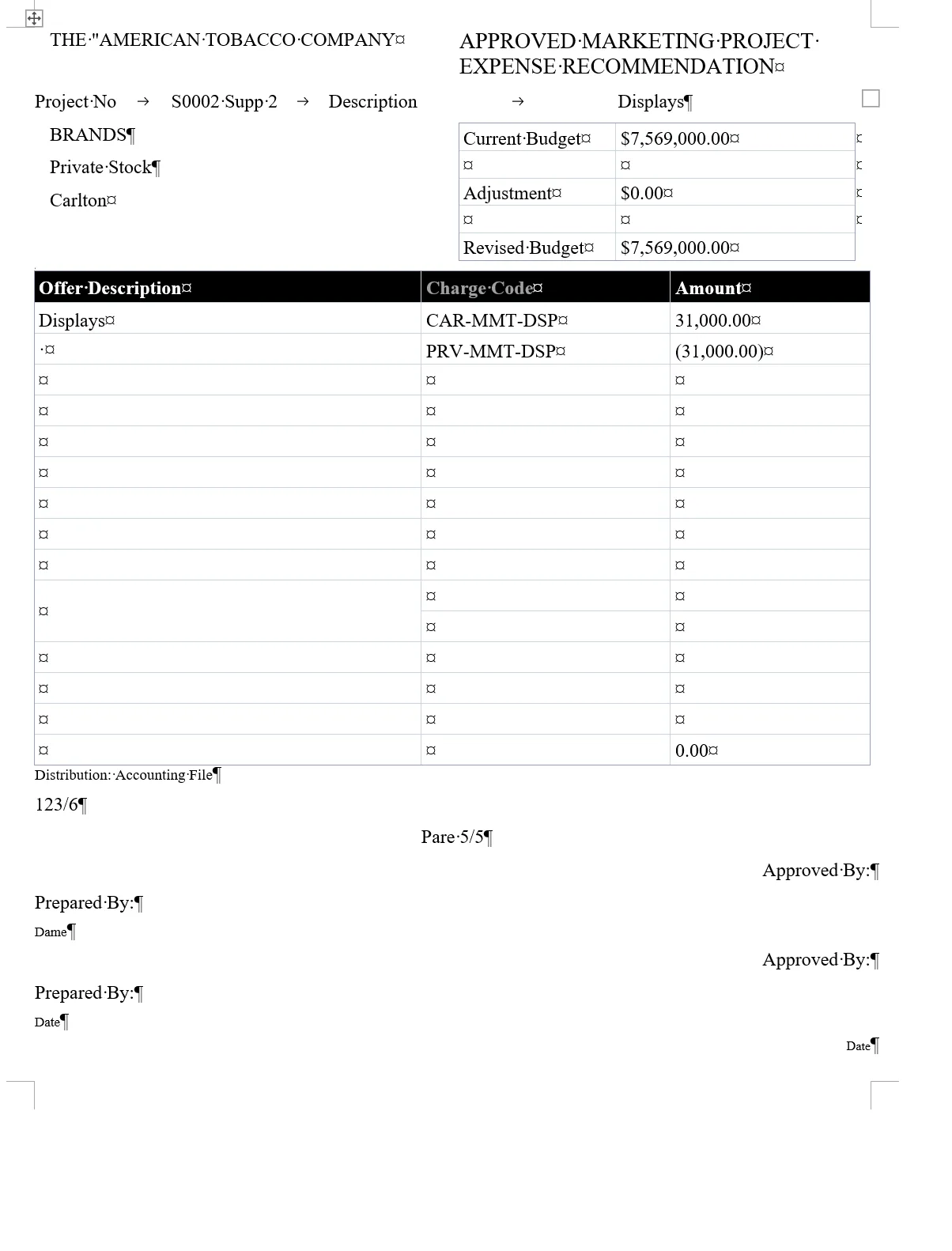
Counted in each Word file of these 11 scans only. Other programs and settings will give other results; every file can be downloaded on the Examples page.
What you get in the Word file
-
Amounts as text
Brackets and currency signs kept: “(31,000.00)”, “$7,569,000.00”.
-
Schedules as tables
Rows and columns that paste into a spreadsheet.
-
Possible misreads listed
Including O read for 0.
-
Handwriting and redactions
Handwriting to text; blacked-out numbers stay hidden.
Worked example
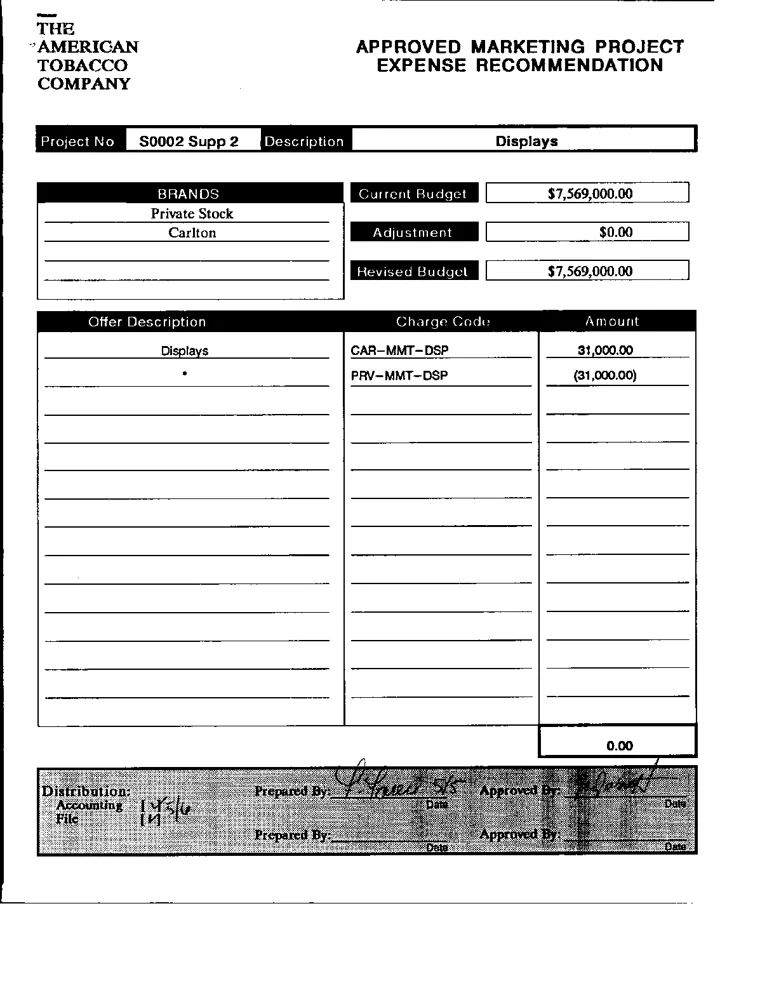
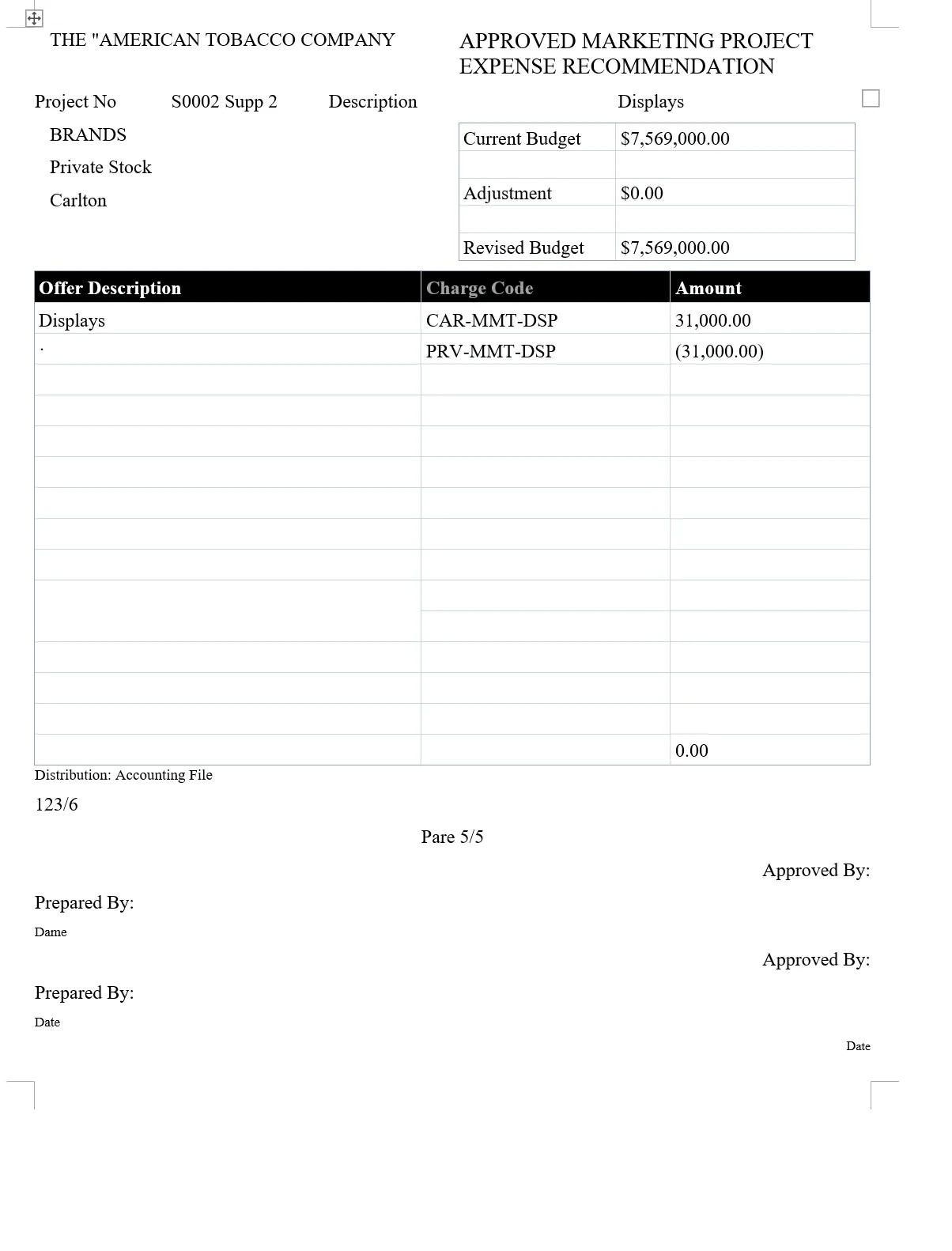
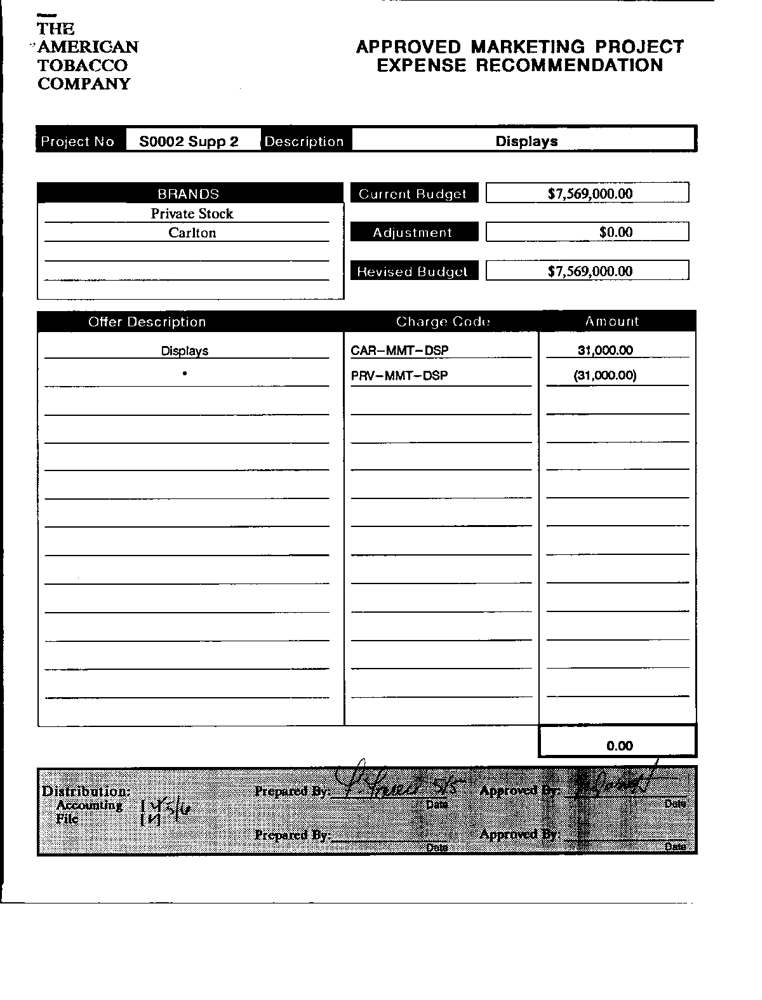
An expense form with budget boxes and charge codes
A real archive scan, converted once and not edited.
What came through, and what needed fixing
Came through as editable Word
- Amounts as editable text: “$7,569,000.00”, “(31,000.00)”
- Charge codes and amounts in a Word table
Needed a quick fix by hand
- Signatures and handwritten dates become stray text (“123/6”, “Pare 5/5”)
- One “Date” reads “Dame”
Download: the scan (PNG, 104 KB) · OrigaDoc’s Word file (DOCX, 4 KB) · the desktop OCR program’s Word file (DOCX, 71 KB)
Know where your documents go
Not sent to generative AI
Converting doesn’t use one. Translation uses Anthropic only if you choose it.
Read by Microsoft
Scans and complex pages, in the eastern US. Plain digital pages stay on our server.
Private, auto-deleted
14–90 days by plan, or as short as 24 h. Delete any time.
Only you can open it
Your team’s admins see usage, never documents.
Encrypted connections · Not used for anything but converting and translating
Try 1 page free
From US$0.05 a page. See pricing
- Upload
- Choose pages
- Convert
Upload a PDF
or drop a PDF or image here
- 1 page free, no account
- PDF, JPG, PNG · 50 MB
- Deleted after 24 h (how we handle your files)
Questions from finance teams
How do we catch misread numbers?
After converting you get a list of words that may be misread, with a suggestion where there is one, and you can highlight them in the Word file. It doesn’t catch every mistake, so check totals and key figures.
Can our team share an account?
Yes. Team plans for 3 or 10 people share one pool of credits. Admins see usage, never documents.
How long are files kept?
You choose for each workspace, from 24 hours up to your plan’s maximum. Files are then deleted automatically, and you can delete any file sooner.
Which files can we convert?
PDFs and images (JPG or PNG) up to 50 MB. Password-protected PDFs can’t be converted.
See how your figures come through.
Try one page free, or download our scans and Word files first.